Available on
- 🖥️ Archipad Web
- 🤖 Android (same steps as the Web version)
- 📱 iPhone and iPad
Use filters to display only Observations that match your tracking criteria.
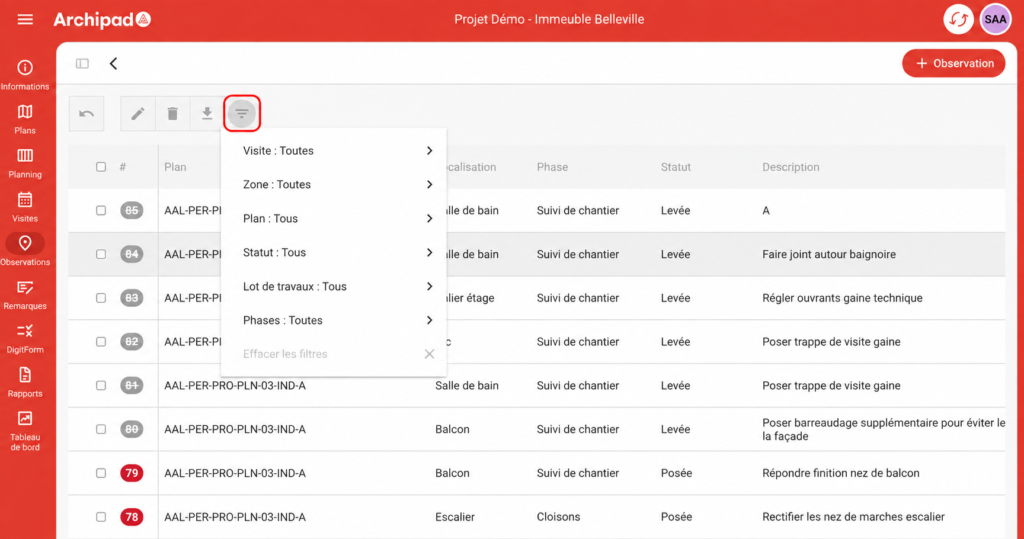
On Archipad Web
- Go to the Observations table.
- Click the Filters button.
- Select one or more criteria: Meeting, Region, Plan, Status, Work package or Phase.
- View the Observations matching your Selection.
Good to know
Click Clear Filters to reset the display.
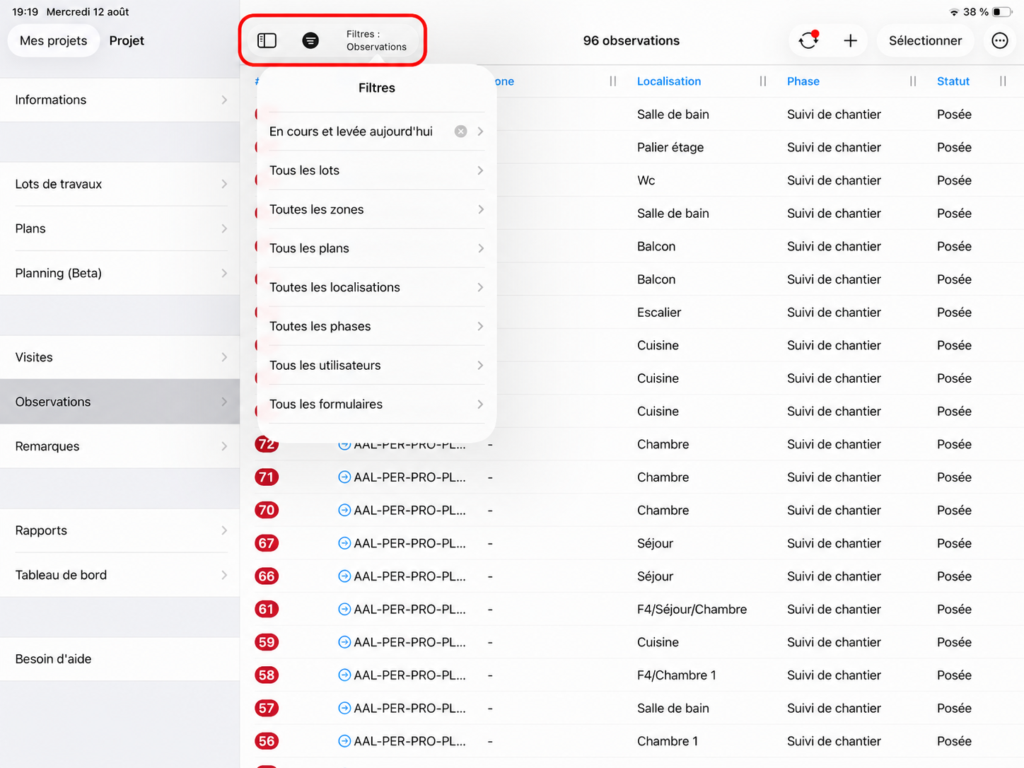
On Archipad App
- Open the Observations table.
- Tap Filters: Observations.
- Select your desired criteria, for example Status, Work Package, Region, Plan, Location, Phase, User or Form.
- View the Observations matching your Selection.