


Available
- 🖥️ Archipad Web
- 🤖 Android (same steps as the Web version)
- 📱 iPhone and iPad
If the correction of a Defect does not meet your expectations, Decline Sign-Off in the Archipad After Sales Service app by providing your reason. The Defect remains open: it moves to arbitration, and a new Contractor intervention is then scheduled.
Before you start: the Defect must have the Status Completed. This is the only time you can Sign or Decline Sign-Off.
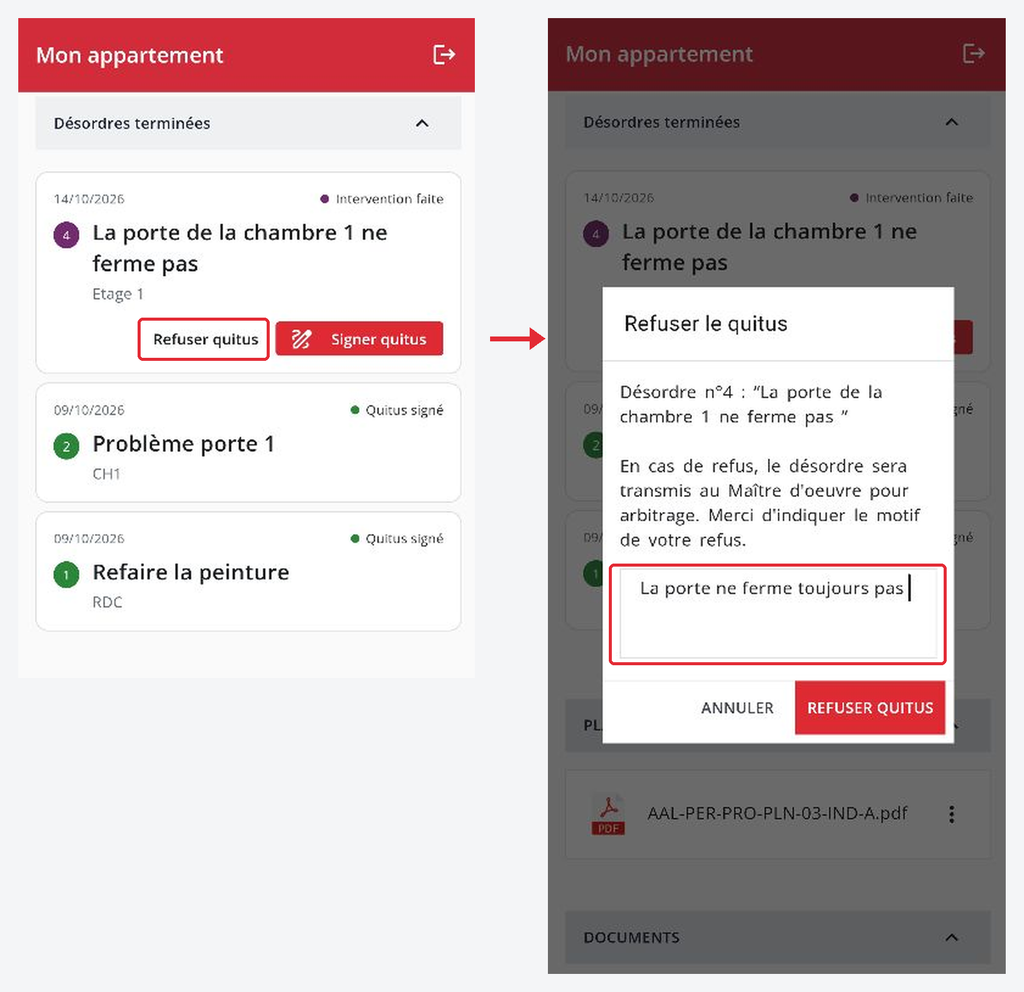
On the left, the “Decline Sign-Off” button on a Defect with Status Completed. On the right, the window where you enter your reason before confirming.
Steps
- Open the Defect. In “My Unit”, locate the Defect with Status Completed, then tap “Decline Sign-Off”.
- Provide your reason. Describe precisely what is not satisfactory, for example “The door still doesn’t close”. The reason is mandatory.
- Confirm the refusal. Tap “Decline Sign-Off”. The Defect returns to “Open Defects” with Status Arbitration, and it is sent to the Construction Project Manager.
- Follow the arbitration. The Construction Project Manager reviews your reason. The Defect then returns to “In Progress” and the Contractor intervenes again.
- Sign or refuse again. When the new correction is completed, the Defect returns to Status Completed. You can then Sign the Sign-Off, or Decline it again with a new reason.
Statuses after a refusal
| Status displayed | What this means |
|---|---|
| Arbitration | Your refusal is recorded: the Construction Project Manager or the After Sales Service Manager reviews your reason. |
| In Progress | A new Contractor intervention is scheduled. |
| Completed | The new correction is completed: you can Sign the Sign-Off. |