


Migration from Classic to Archipad
Archipad Classic will no longer be updated soon. To find your Projects and data in Archipad™, follow these four steps.
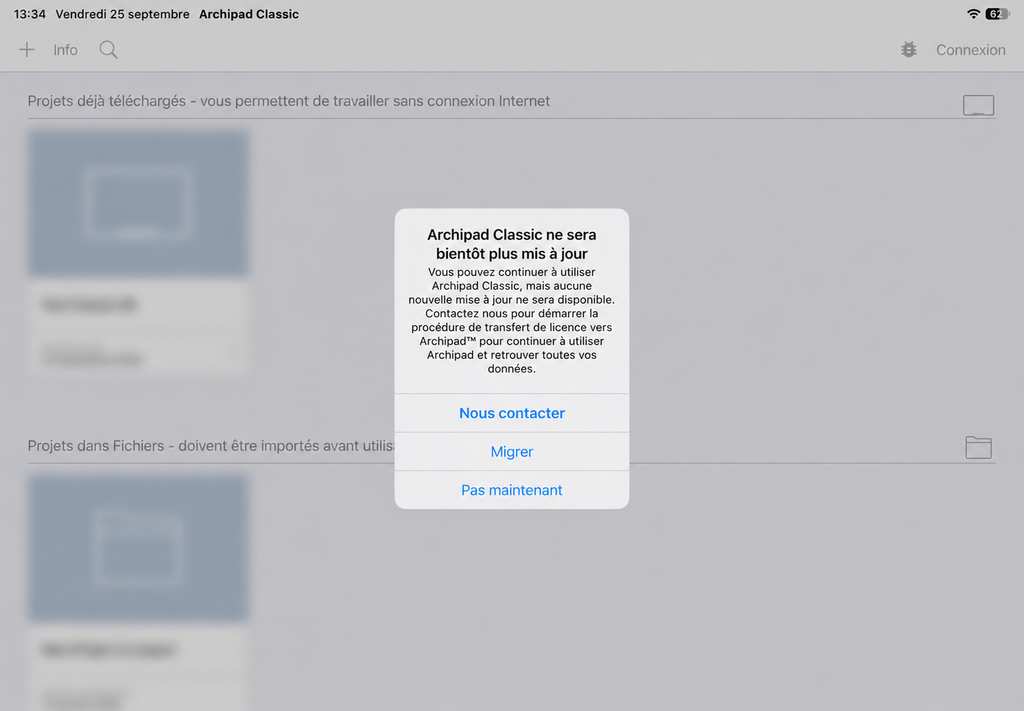
- Request a callback. In Archipad Classic, tap Contact and complete the contact form. A member of our sales team will call you to arrange the transfer of your license. You can continue working in Archipad Classic while you wait.
- Start the migration. Before you begin, make sure Archipad™ Premium is already downloaded on your device, your Archipad™ account is ready, and your license is applied to it. Then Open Archipad Classic and tap Migrate. Wait while your data is being prepared.
- Open Archipad™. When the message “Open Archipad™ to complete the migration” appears, tap Open.
- Sign in to Archipad™. Your data recovery will start automatically. Wait until the operation is complete.
- If there is insufficient disk space during the migration, free up the amount indicated and tap Retry.
If you do not want to migrate now
In the first message, tap Later to continue using Archipad Classic. The message will reappear the next time you open it.