


Available
- 🖥️ Archipad Web
- 🤖 Android (same steps as the Web version)
- 📱 iPhone and iPad
When a Buyer Rejects the Sign-Off, the Defect remains open: it moves to Arbitration, then returns to resolution for a new intervention. This article describes the 4 steps to follow, for the After Sales Service Manager and the Construction Project Manager.
Before you start: the Defect is at Completed Status. Previous steps are described in the article Rejecting Sign-Off in the Archipad After Sales Service app
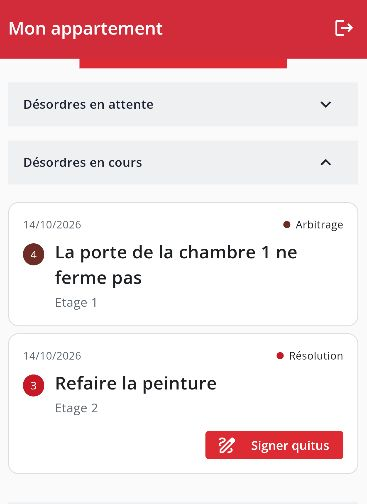
Buyer’s View after a rejection: the Defect returns to “Active Defects” with Arbitration Status.
Steps
- The Buyer Rejects the Sign-Off. On a Defect at Completed Status, they Reject the Sign-Off in the After Sales Service app and enter their reason, which is mandatory. The Defect moves to Arbitration Status and returns to “Active Defects”.
- Review the reason. In Archipad Web, open the Buyers menu then the relevant Defect. The Defect is sent to the Construction Project Manager or After Sales Service Manager. The Buyer sees the arbitration in their “My apartment” View.
- Arbitrate the dispute. The Construction Project Manager or After Sales Service Manager examines the reason and the correction made, then makes a decision.
- Restart the intervention. The Defect returns to Resolution: “In progress” on the Buyer’s side, “To Solve” on the Work package side. The Contractor
Defect Statuses
A Sign-Off Rejection never closes the Defect: it sends it back to resolution.
| Status in Archipad | What the Buyer sees | Who acts |
|---|---|---|
| Completed | Invited to Sign Off | Buyer |
| Arbitration | Arbitration, in “Active Defects” | Construction Project Manager / After Sales Service Manager |
| In progress | Resolution | Work package |