


Available on
- 🖥️ Archipad Web
- 🤖 Android (same steps as the Web version)
- 📱 iPhone and iPad
You can link a Region to a Meeting to limit the available Plans to the relevant part of the Project.
This link is optional. It is particularly useful for Projects with several buildings, floors, sectors or Units.
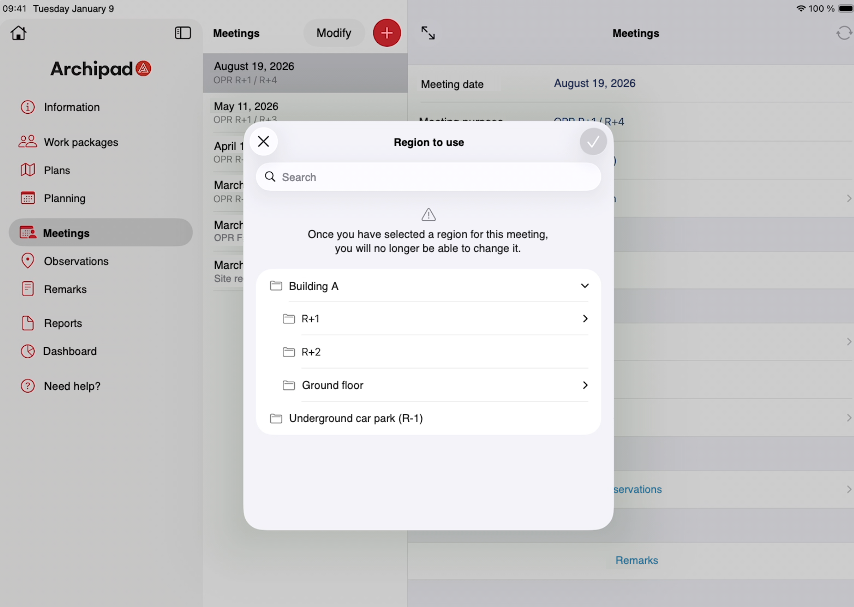
On Archipad iOS
To link a Region to a Meeting:
- Go to the Meetings menu, then select the Meeting concerned.
- Tap the Meeting region field.
- In the Region to use window, select the desired Region.
- The selected Region is automatically filled in the Meeting region field.
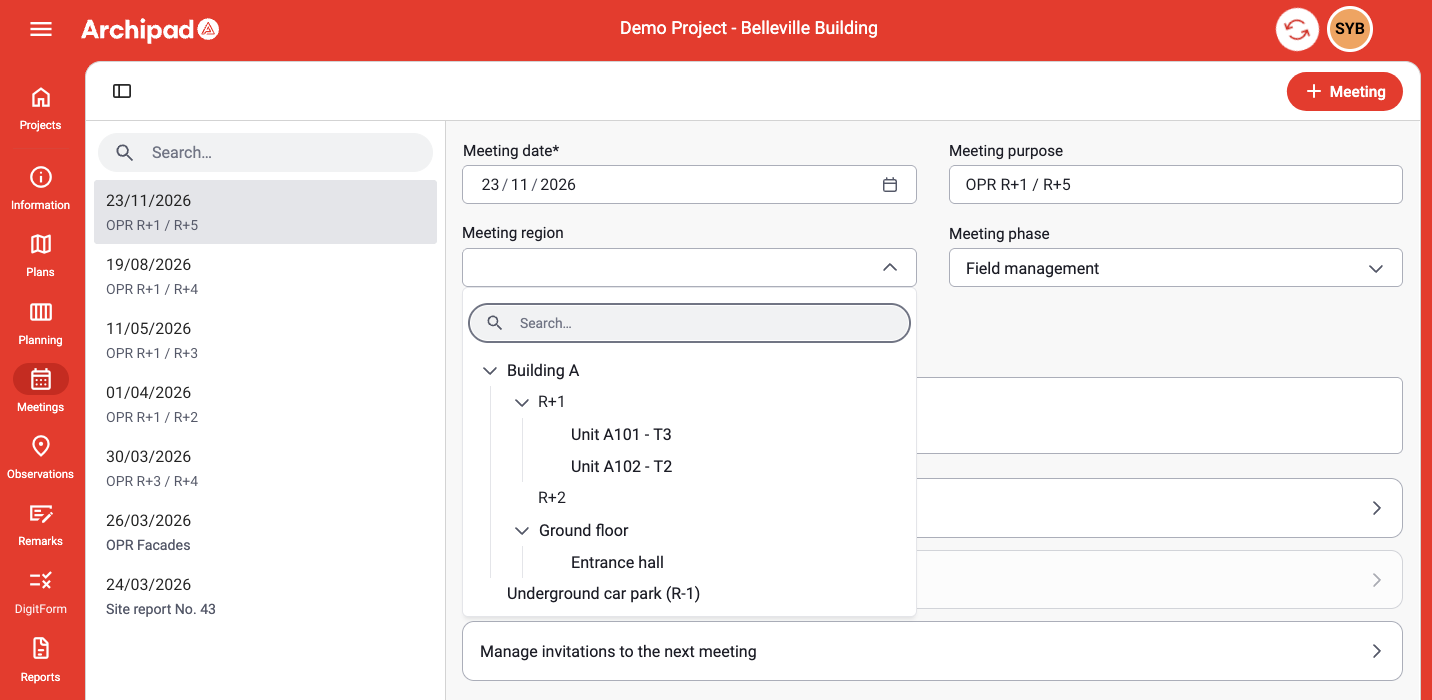
From Archipad Web
- In the Project concerned, select Meetings in the side menu.
- Open the Meeting you want to link to a Region.
- Click Meeting region, then select the desired Region.
- The selected Region is automatically linked to the Meeting.
Once the Region is linked, Plan selection is limited to this Region and its sub-regions for the whole Meeting. This lets you focus on the relevant Plans and reduces the risk of selecting a Plan from another part of the Project.
Example: during the handover of a Unit, link the Meeting to the Region of that Unit so that only the Plans of the inspected property are offered.